ProPresenter pre service videos
Cross fade between videos
To create a better playback and cross fade between videos in the pre service section, one can very easily alter the start/stop times of the individual videos to eliminate black screens and video build ups into a seamless playback.
In ProPresenter, right click on the video and select “Inspector”. The Inspector screen is shown:
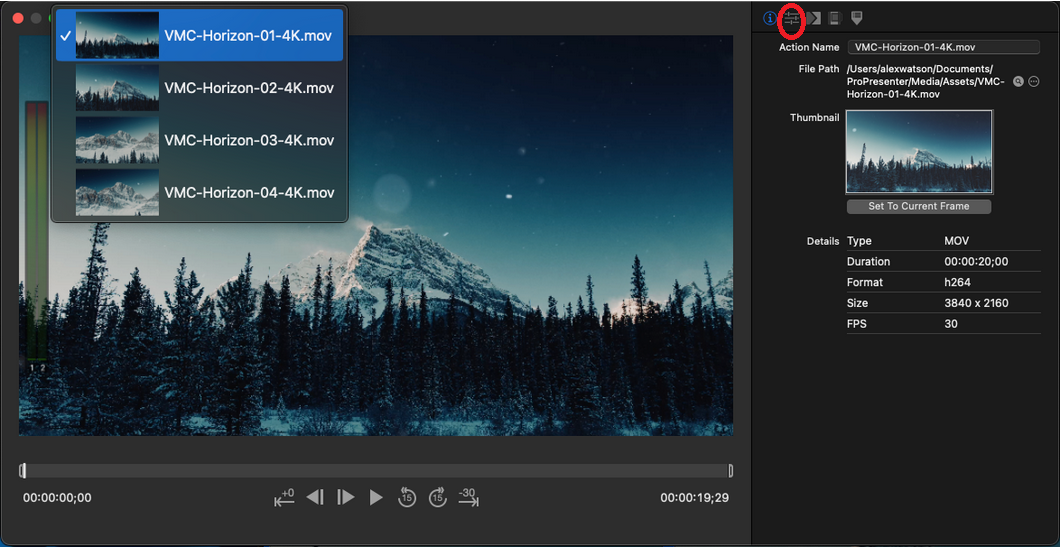
Select the properties view (marked with red circle) of the video in Inspector.
Use playback controls and look for appropriate start of the video to remove as much as possible of dead time where no audio/video is present. Stop playback and use frame forward/backward if needed to position playhead to position. Once at the correct place, select the icon on the right side of "In point" (Red circled) on the right hand to copy the exact time code into the In point. Alternatively, time code can be typed in manually.
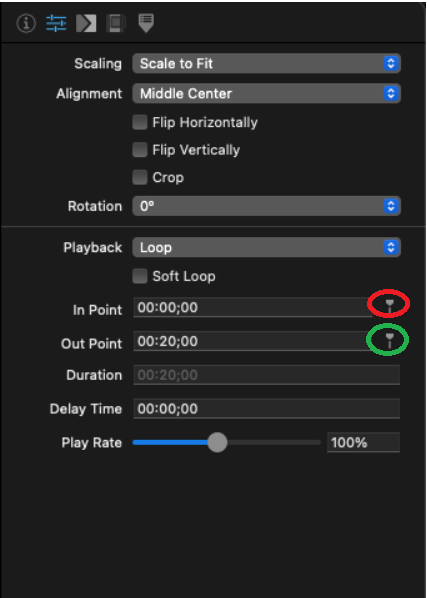
Repeat steps to specify the out time of the video. Use playback control and find the appropriate last frame of video, removing any black or unwanted visuals. Set out time by clicking the "Out point" (Green circled) icon or manually typing the time code.
Repeat the process above for each of the videos in the pre service playlist. When above is set, starting the pre service video playlist will provide smoother crossfade transitions between videos without awkward black screens and no need to edit videos.
Setting up automatic move to next video
To ensure that videos automatically advance and select next, select all videos in the pre service area, right click and ensure that videos are in foreground.
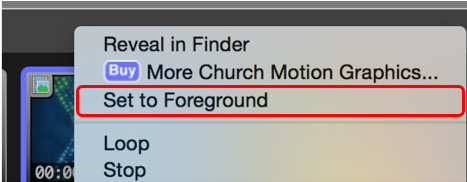
Next select all videos and right click and select Go To Next Timers. Ensure that the timer is set to 0 seconds for immediate transition to next video.
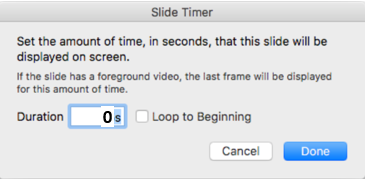
The timer starts when the video ends. It doesn't matter how long the video is, the timer starts when the video finishes playing. Typically you would want to set your timer to zero (0) seconds in order to advance to the next cue in the presentation immediately. If you set the timer to a longer time, the last frame of the video will stay on screen for that amount of time before advancing to the next slide.